
FacetWP Elementor Integration
his add-on lets you display facets alongside a range of Elementor listing widgets. These widgets are available when using Elementor Pro, or one of the mentioned Elementor plugins. With this add-on installed, FacetWP also adds three widgets of its own, for adding facets, Listing Builder listings, and FacetWP-related buttons. These widgets also work with the free version of Elementor.
FacetWP Elementor Integration
Supported widgets
The following widgets are supported and can be used to create FacetWP compatible listings:
| Plugin | Widget name |
|---|---|
| Elementor Pro | Loop Grid Posts Archive Posts Products (with WooCommerce) Archive Products (with WooCommerce) |
| Ultimate Addons for Elementor | Posts Woo – Products (with WooCommerce) |
| Premium Addons for Elementor | Blog Woo – Products (with WooCommerce) |
| PowerPack for Elementor | Advanced Posts Woo – Products (with WooCommerce) |
| JetEngine | Listing Grid |
| AnyWhere Elementor Pro | Post Blocks Post Blocks AdvFacetWP does not support AEP directly. The integration is built into AEP.Note: to disable the scroll on page load, see the instructions below. |
FacetWP adds the following widgets:
| Plugin | Widget name |
|---|---|
| FacetWP | FacetWP Facet FacetWP Listing FacetWP Button |
Usage
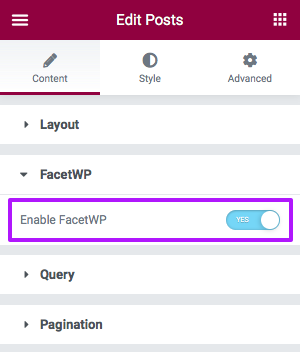
After installation and activation, there is no further configuration needed for this add-on plugin. When it is active, supported Elementor listing widgets will display an extra “Enable FacetWP” setting. If this setting is enabled, FacetWP will use this listing as the one to dynamically filter with facets. The Archive Posts and WooCommerce Archive Products widgets are meant to be used on WP archive pages. Other widgets, like the Posts widget or the Query Loop widget, can be used both on normal pages and on WP archive templates (if you set the Query Source setting to use the “Current Query”).
FacetWP’s own built-in widgets can be used to add facets, listings and FacetWP-related buttons:
FacetWP Elementor widgets
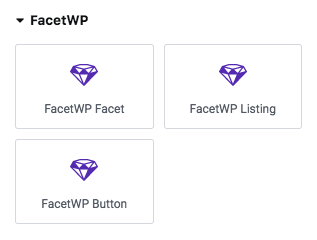
Since v1.8, the FacetWP Elementor add-on comes with three built-in Elementor widgets:
- FacetWP Facet – adds a facet.
- FacetWP Listing – adds a Listing Builder listing.
- FacetWP Button – adds an Apply button, a Flyout button or a Submit button.
The FacetWP Facet widget
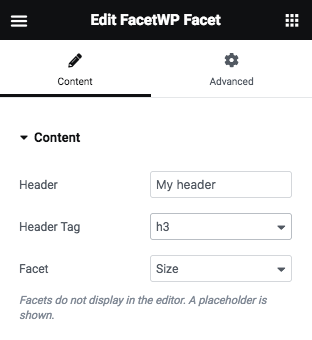
With a “FacetWP Facet” widget you can add an existing facet to your Elementor page. The widget is a convenient alternative to adding facet shortcodes in a “Shortcode” or “HTML” widget. After adding the widget to your page, use the “Facet” setting dropdown to select one of your existing facets. The dropdown will show all previously created facets, including the User Selections facet (which does not appear in the back-end facet overview). Optionally, add a facet heading by entering a text in the “Header” field and selecting the HTML tag to use for it. If you want to hide empty facets, including their heading, you can use this code snippet.

Note that facets will not display in the Elementor editor: a placeholder is shown instead. Check your front-end page to see if your facets are functioning correctly. If they are not appearing, make sure you also have added a listing to the page. This can be a supported Elementor widget, a Listing Builder listing (added with a Listing widget), or any other supported listing template type.
FacetWP Elementor Integration
The FacetWP Listing widget
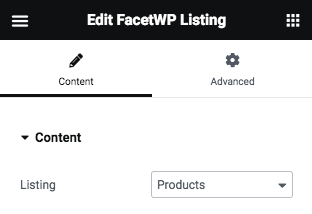
With a “FacetWP Listing” widget you can add an existing Listing Builder listing template to your Elementor page. It is a convenient alternative to adding listing shortcodes in a “Shortcode” or “HTML” widget. After adding the widget to your page, use the “Listing” setting dropdown to select one of your previously created Listing Builder listings. Unlike the Facet widget, the Listing widget will show your listing, including its full layout, in the Elementor editor.
The FacetWP Button widget
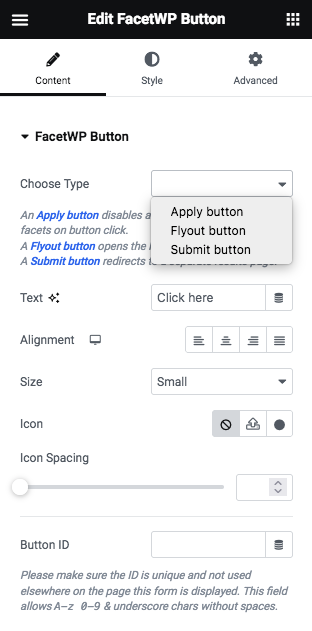
With a “FacetWP Button” widget you can add three types of buttons to your Elementor page:
- An Apply button – disables auto-refresh and applies facet selections on button click.
- A Flyout button – opens the Mobile Flyout panel.
- A Submit button – redirects facet selections to a separate results page.
Use the “Choose Type” setting to select the desired button type. Then change the button text and styling settings as needed.
Add an “Apply” button
When you add an “Apply” button to your page, it will disable FacetWP’s auto-refresh function and apply facet selections only when the button is clicked. Adding this button type does exactly the same as explained in our tutorial on how to disable facet auto-refresh and add a submit button. It will also automatically add the mentioned JavaScript snippet that disables auto-refresh to your page. As described in this tutorial, this button will disable auto-refresh for all facet types, except for Pager facets and Reset facets. If needed you can re-enable auto-refresh for individual facets or facet types with FWP.refresh(), for example when using a Sort facet.
Add a “Flyout” button
When you add a “Flyout” button to your page, and you have the Mobile Flyout add-on installed, the button will open the Flyout panel, as described here.
Add a “Submit” button
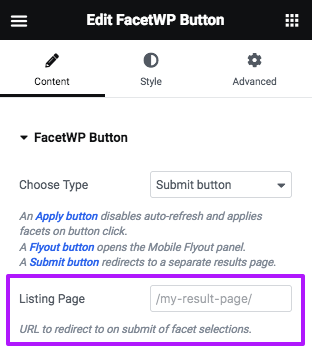
When you add a “Submit” button to your page, and you have the Submit Button add-on installed, the button will redirect to the page specified in the “Listing Page” field. When facets have selections, they will be included in the redirect. The Submit button widget is a convenient alternative to adding the Submit button manually or with a shortcode.
Add FacetWP shortcodes with a Shortcode widget
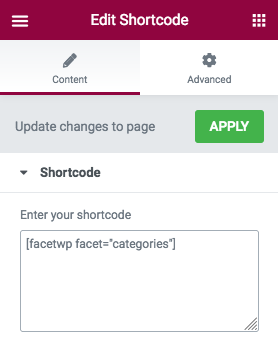
Instead of using FacetWP wigets, shortcodes for facets, listing templates and other features can also be added with an Elementor Shortcode widget. Just copy the shortcode from the FacetWP overview page or facet/listing settings page, and paste them into the widget. As an alternative to a Shortcode widget, you can also use an HTML widget.
FacetWP on WP archive templates
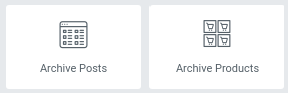
FacetWP can also be enabled on WP archive templates created with the Elementor Theme builder. The Archive posts widget (for posts, pages, and custom post types) and the Archive products widget (for Woocommerce product archives) can be enabled in their settings for FacetWP in the same way as the above widgets, while automatically using the archive query for the results.
To change or set any query arguments (like posts_per_page) of an Archive Posts or Archive Products query, you can use a pre_get_posts hook.
Using a Posts, Loop Grid, or Woo Products widget WP archive template
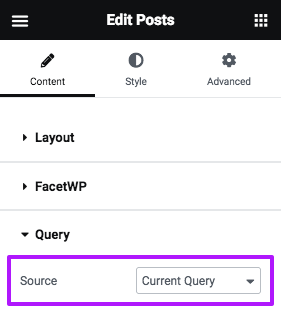
If you are using one of the following widgets on a WP archive page page, make sure to set it to use the native archive query that is already running on the page:
- Elementor Posts widget
- Elementor Loop Grid widget
- Ultimate Add-ons for Elementor Posts widget
- Ultimate Add-ons for Elementor Woo-Products widget
Depending on the widget the native archive query can be set in Query > Source (or Query Type) > Current Query (or Main Query). To change or set any query arguments (like posts_per_page) of an Elementor Posts or Loop Grid query, you can use Elementor’s Custom Query Filter hook.
Using a JetEngine Listing Grid Widget on a WP archive template

If you are using a JetEngine Listing Grid Widget on a WP archive page, make sure to enable the setting “Use as Archive Template”. This setting works similar to the “Source > Current Query” setting in native Elementor widgets. If enabled, the widget’s query settings will be ignored, and the native WP archive query that is already running on the page will be used instead.
Using Elementor pagination
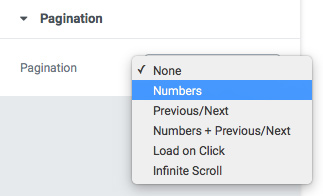
If you are using Elementor’s pagination (which you can set in Posts, Archive Posts or Loop Grid widgets), FacetWP will detect this pagination and convert it for use with AJAX filtering. However, this will only work for the pagination options that have numbered pagination. FacetWP does not work with the “Load on Click” or “Infinite Scroll” pagination types. Choosing “Infinite Scroll” will also lead to JS errors in the Console. (Side note: FacetWP will not work with any type of “Infinite load” pagination).
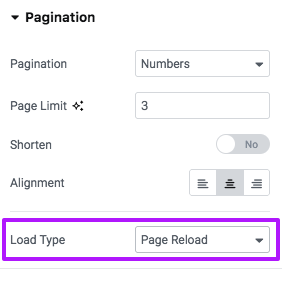
Additionally, Loop Grid widgets have a “Load Type” setting in their Pagination setting. Make sure to choose “Page Reload”. The “AJAX” option will not work with FacetWP. FacetWP will detect Elementor pagination clicks and will use it to trigger AJAX loading itself. If the integration with Elementor pagination is not working correctly, you can also use a Pager facet, which offers several pager types, like numbered pagination and a “Load more” type.
Block FacetWP from using the wrong post widget query
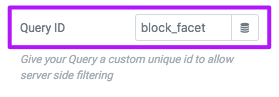
block_facet Query ID in ElementorIf FacetWP is identifying the wrong query in Elementor, you can use the query_id setting to block FacetWP from using a post widget query that it shouldn’t. Give the ‘Query ID’ setting in the Elementor widget a value of block_facet, and add this code to your (child) theme’s functions.php:
How to use custom PHP code?
PHP code can be added to your (child) theme’s functions.php file. Alternatively, you can use the Custom Hooks add-on, or a code snippets plugin. More info
Force FacetWP to use a specific post widget query
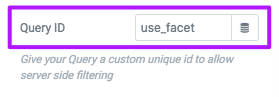
use_facet Query ID in ElementorYou can force FacetWP to use a specific Elementor query ID. Give the ‘Query ID’ setting in the Elementor widget a value of use_facet, and add this code to your (child) theme’s functions.php:
How to use custom PHP code?
PHP code can be added to your (child) theme’s functions.php file. Alternatively, you can use the Custom Hooks add-on, or a code snippets plugin. More info

